How to Record Your Screen Online (No Download or Extension)
Record your screen, camera, and voice directly in your browser—without installing a desktop app or Chrome extension. This guide shows you how to capture, save, download, and share a clear screen recording with Aks.

Quick answer: To record your screen online, open Aks in a current desktop browser, choose Full Screen, Window, or Current Tab, turn your camera and microphone on or off, and select Start recording. When you finish, you can review the video, download the file, or upload it and share a link. Aks does not require a desktop app or browser extension.
Sometimes a screenshot is not enough. A customer needs to see where to click. A teammate needs the exact steps that caused a bug. A student needs to watch a process instead of decoding a long message.
A screen recording shows the action and explains it at the same time. With a browser-based recorder, you can make that video without stopping to install software first.
What is an online screen recorder?
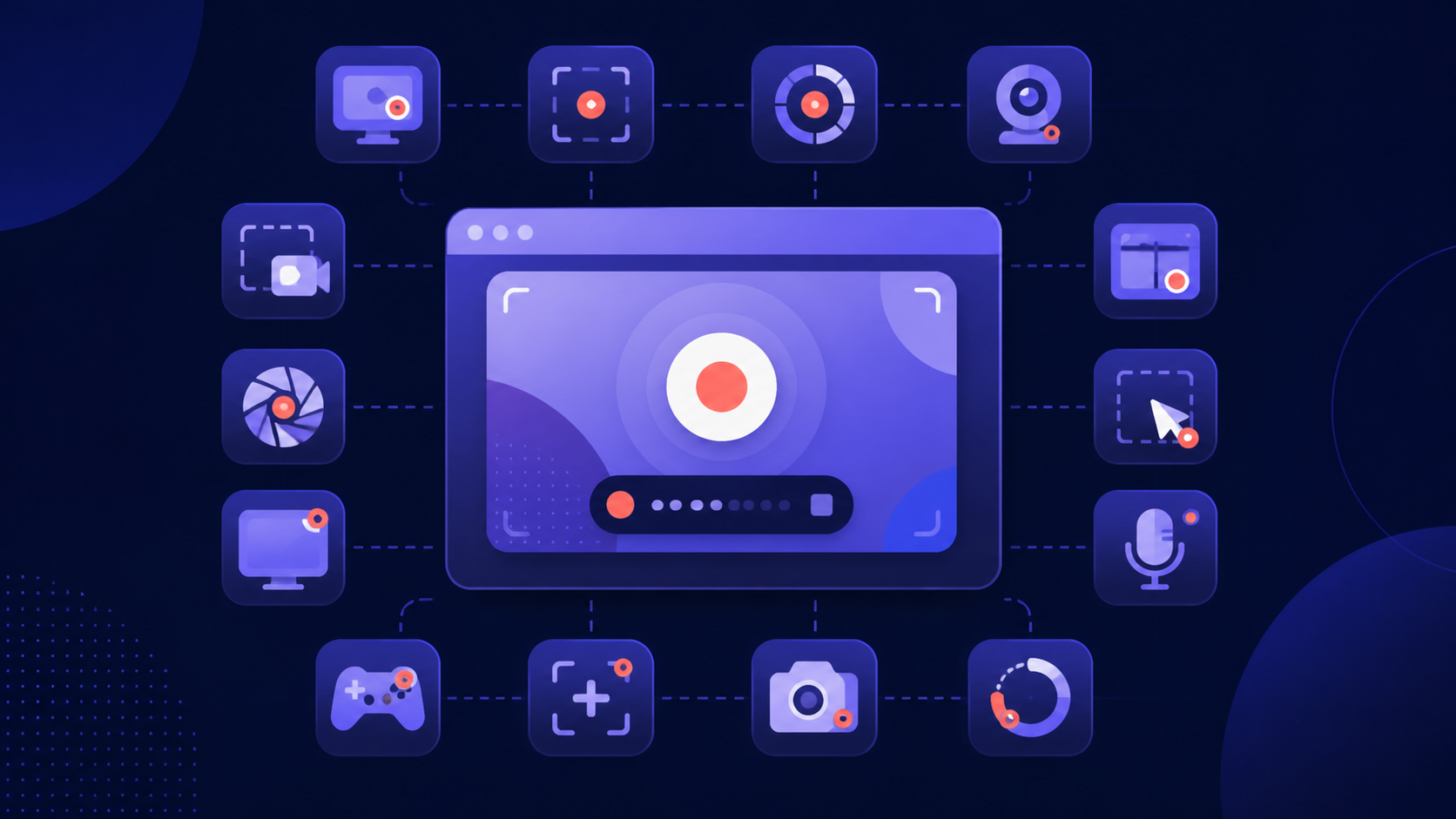
An online screen recorder is a web application that captures a browser tab, an application window, or your full screen. Depending on the tool and browser, it can also record your microphone and place your camera in the video.
The recording does not begin silently. Modern browsers show a permission prompt and let you choose what to share. The browser Screen Capture API also requires a new user action and permission for each capture session, which helps prevent a website from recording your screen without your knowledge. You can read the technical details in MDN's guide to browser screen capture.
Aks is a free, browser-based screen recorder for capturing your screen, camera, and voice. It is designed for quick walkthroughs, product demos, tutorials, bug reports, and support videos that you can download or share with a link.
How to record your screen online with Aks
1. Open the recorder
Go to the Aks recorder. For the most reliable desktop recording experience, use an up-to-date version of Chrome or Edge. Aks also works in Safari, although the recording options available can vary by browser and operating system.
You can try the recorder without installing an app or extension. If you continue without an account, local recordings stay on that browser and device. Creating a free account adds cloud storage and share-link workflows.
2. Choose what you want to capture
Select the capture mode that matches the job:
- Current Tab is best for a focused website walkthrough, web-app tutorial, or browser-based product demo.
- Window is best when the explanation stays inside one application and you do not want to expose the rest of your desktop.
- Full Screen is best when you need to move between multiple apps or windows.
- Camera Only is best for a short video message that does not need a screen demonstration.
When your browser opens its sharing dialog, inspect the preview before you approve it. Choose only the tab, window, or display that your viewer needs to see.
3. Set your camera and microphone
Keep the microphone on when narration will help the viewer understand why you are taking each step. Turn on the camera when a presenter bubble will make the message more personal. You can also record the screen without a camera when the interface should have the viewer's full attention.
If the camera or microphone does not appear, check the permission icon beside the browser address bar. Chrome lets you allow camera and microphone access for the current visit or while visiting the site; its official camera and microphone permission guide explains how to change a blocked setting.
4. Start recording and explain one outcome
Select Start recording, wait for the countdown, and move through the process at a pace the viewer can follow. A simple structure keeps the recording useful:
- Say what the viewer will learn or see.
- Show the shortest path to the result.
- Pause briefly after important clicks or changes.
- Finish by stating the outcome or next action.
One focused recording is usually easier to understand and rewatch than a long video covering several unrelated topics.
5. Stop, review, and share
Stop the recording when the explanation is complete. Review the result before sending it, especially if you recorded an entire window or screen. Check that notifications, customer details, passwords, private messages, and unrelated tabs are not visible.
Then choose the workflow you need:
- Keep it local when you want the recording to remain in the current browser on the current device.
- Download the video when you need a file for documentation, a support ticket, a project board, or an archive.
- Upload and share a link when you want viewers to open the recording without transferring a large attachment.
Which screen-recording setup should you choose?
Screen only
Choose screen only for precise bug reports, software documentation, and interface walkthroughs. It removes visual distractions and keeps every pixel available for the product.
Screen and microphone
Choose screen and microphone for tutorials, support answers, and process documentation. The viewer can see the action while hearing the reasoning behind it.
Screen, camera, and microphone
Choose all three for product demos, sales messages, lessons, and team updates where trust and personality matter. A small presenter bubble adds a human presence without covering the main demonstration.
Is Aks a Loom alternative?
Yes—Aks is a Loom alternative for people who want to record and share their screen directly from a browser without installing a desktop app or Chrome extension. Both products can combine screen, camera, and voice and provide link-based sharing, but they serve different levels of workflow complexity.
Aks is a strong fit when your priority is fast capture, a lightweight interface, local or cloud recording workflows, downloadable files, and simple viewer links. Loom is the more mature choice when you specifically need advanced editing, automatic transcripts and captions, comments and emoji reactions, viewer analytics, deep integrations, or AI-generated summaries and chapters. Loom's current feature and plan details are listed on its official pricing page.
Aks is not the only tool that records in a browser. Vimeo offers browser recording alongside editing, captions, hosting, and analytics, while ScreenPal offers an online recorder plus a broader desktop editing toolkit. The right choice depends on whether you value the quickest path from record to link, advanced post-production, collaboration features, or a larger video platform.
Five ways to make a clearer screen recording
- Record one task. “How to invite a teammate” is clearer than “A complete tour of every setting.”
- Hide private information. Close unrelated tabs, pause notifications, and use sample data where possible.
- Write a three-line outline. Note the opening, the main steps, and the final action instead of scripting every word.
- Move deliberately. Slow down before clicks and keep the pointer near the item you are describing.
- Check the audio first. A short microphone test prevents a perfect screen capture with unusable narration.
Common browser screen-recording problems
The browser does not show a screen-sharing prompt
Refresh the recorder, select Start recording again, and make sure you are using a supported, current desktop browser. A work or school administrator may also restrict screen capture through managed-browser policies.
The camera or microphone is missing
Open the browser's site permissions, allow the device, and refresh Aks. Also close video-call or camera apps that may already be using the same input.
The recording captured the wrong tab or window
Stop and start a new recording. Browsers ask you to choose the source for each session, so verify the preview and source name before selecting Share.
The saved recording is no longer available
Local recordings depend on browser storage on the same device. Clearing site data or browser storage can remove them. Download important local recordings or use a signed-in cloud workflow before clearing browser data.
Frequently asked questions
Can I record my screen without downloading software?
Yes. Aks records your screen from a supported desktop browser, so you do not need to install a desktop application or browser extension.
Can I record my screen and webcam at the same time?
Yes. On supported desktop browser flows, Aks can record the selected screen source with a presenter-camera bubble and microphone narration.
Can I record a browser tab with audio?
You can record a tab and your microphone. System or tab-audio availability depends on the browser, operating system, selected source, and the options shown in the browser's sharing dialog.
Do viewers need an Aks account?
No. When you create a share link, a viewer can open the link and watch the recording without creating an Aks account.
Is Aks free?
Aks is free to start. Free-plan recording and upload limits may apply, and current limits are shown inside the product.
What can I make with an online screen recorder?
Common uses include product demos, software tutorials, bug reports, customer-support answers, lessons, onboarding guides, process documentation, release updates, and asynchronous team messages.
Record the explanation while it is fresh
You do not need a production setup to explain something clearly. Open Aks, choose the screen source your viewer needs, and record the next step with your camera and voice—or keep it screen-only. When you finish, download the video or share it with one link.