How to Record a Bug Report Developers Can Actually Use
A screen recording can make a bug obvious—but only if it shows the right details. Here’s how to record a short, reproducible bug report without turning it into a documentary.
Most teams have met some version of this ticket:
The button doesn’t work. Please fix.
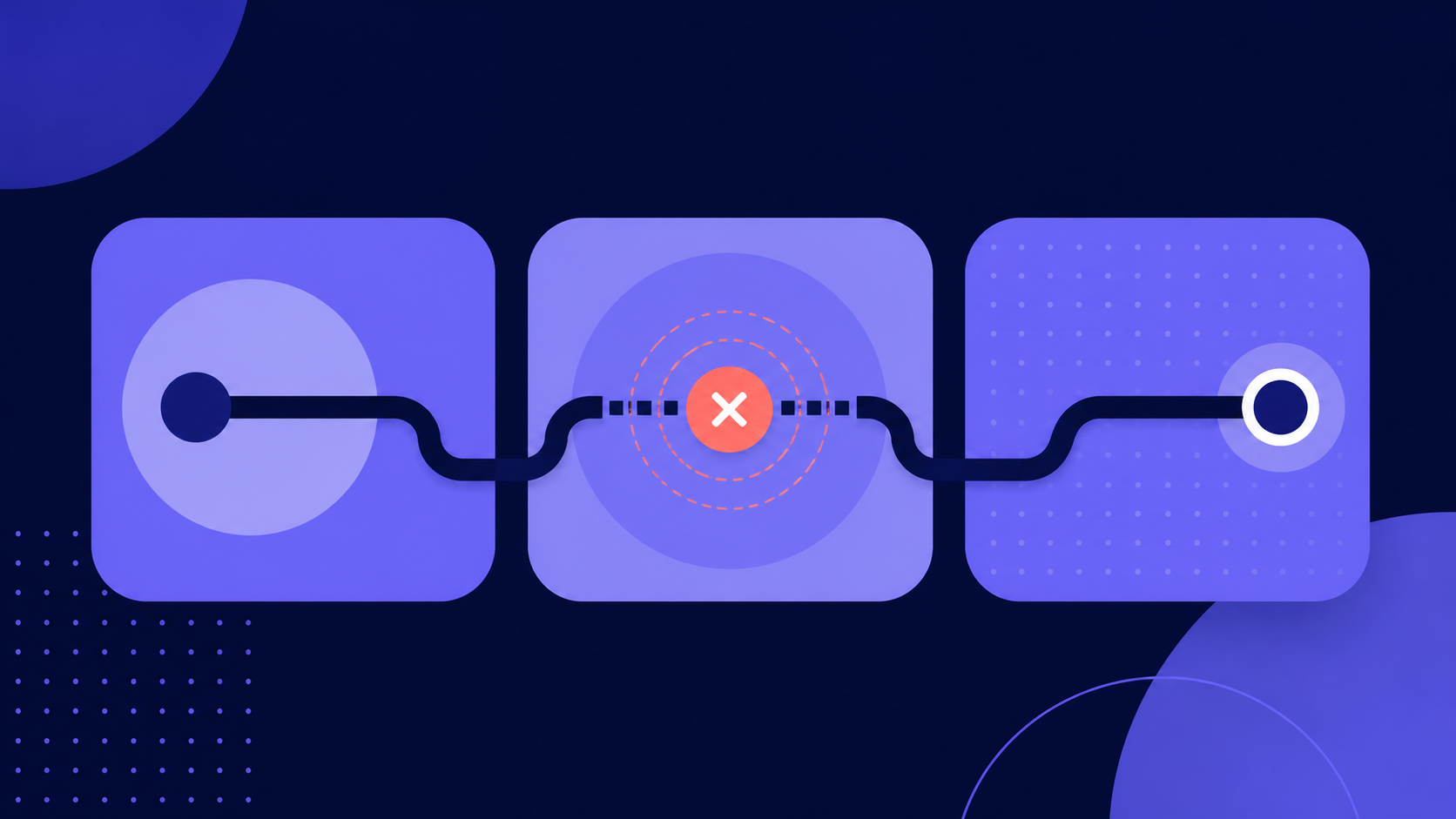
The problem usually isn’t that the person reporting it doesn’t care. They saw something break, tried to describe it from memory, and left out the one detail that made the bug happen. Now someone else has to ask which button, on what page, using which browser, after doing what.
A screen recording can end that guessing game. It captures the order of events, the timing, and the small visual clues that are painful to explain in a paragraph. But a video by itself still isn’t a complete bug report. If the developer has to watch four minutes twice just to discover the browser and expected result, you have moved the detective work instead of removing it.
Quick answer: A useful video bug report shows the starting state, reproduces one issue from beginning to end, says what should have happened, and captures what actually happened. Add the environment and written steps beside the link so the recording is evidence—not the entire ticket.
Reproduce it once before you record it
Do one practice run. Not ten. You are checking three things:
- Can you make the issue happen again?
- What is the shortest path from a clean starting point to the failure?
- Is there any private information on screen that should be hidden first?
This quick rehearsal prevents the classic bug-report video where the first half is someone searching for the page and the second half is them failing to reproduce the thing they wanted to show.
If the bug is intermittent, that is still useful information. Say how often you have seen it—“three times in roughly ten attempts” is far more helpful than “sometimes.” Do not keep recording until chance gives you a perfect take. Record the setup, explain that the issue is inconsistent, and include any pattern you have noticed.
Start from a state someone else can recreate
Before you click anything, give the viewer two seconds to understand where they are. Show the page, the relevant account state, and any setting that matters. Then say the setup out loud:
I’m on the billing page in Chrome. This is a trial workspace with one saved payment method.
That sentence is more valuable than an animated introduction or a polished title card. It tells an engineer what kind of account to use and where to begin.
You should also add the environment to the written ticket:
- Browser and version, when relevant
- Operating system or device
- App version or build
- Account type, role, or plan
- Whether it happens in production, staging, or both
Record the exact actions, not a tour of the product
Move at a normal pace and narrate each meaningful action. You do not need to explain the whole interface. The goal is to preserve the chain of cause and effect.
“I select the annual plan, enter the card details, and click Confirm” is enough. Avoid vague narration such as “I do the normal thing here.” What is normal to you may be the missing step for everyone else.
Mozilla’s bug-writing guidelines make the same point in written form: precise reproduction steps, followed by clearly separated expected and actual results, are the most important part of a useful report. A recording makes those steps easier to follow, but it does not replace them. See the Mozilla bug-writing guidelines for a thorough reference.
Say what you expected before showing what happened
This is the detail people skip most often.
Right before the final action, say the expected result:
When I click Confirm, I expect to see the receipt page and one new invoice.
Then perform the action and let the result sit on screen for a moment:
Instead, the button stays disabled and no invoice is created.
Without the expected result, a developer may not know whether the screen is broken or simply different from what you assumed. Separating expectation from observation also keeps the report factual. You can suggest a cause later; first show what the product actually did.
Keep one video to one bug
While recording, it is tempting to add, “And there’s another strange thing over here.” Don’t. Stop and create a second report.
One issue per recording gives each bug its own reproduction steps, owner, priority, and resolution. It also makes the link useful later. Nobody wants to scrub through “a few things I noticed” to find the 18 seconds relevant to the ticket in front of them.
Most bug recordings can be brief. If yours keeps growing, check whether you are explaining background that belongs in the written description or combining more than one problem.
Don’t accidentally report your password too
Pause before recording and scan the screen for customer names, email addresses, access tokens, private messages, payment details, and production data. Close unrelated tabs and turn off notifications.
If sensitive data is required to reproduce the issue, use a safe test account or replace it with dummy data. A clear bug report is not worth creating a security or privacy incident.
Use this video bug report template
Copy this into Jira, Linear, GitHub Issues, or wherever your team tracks work:
Summary:
[What breaks, where, and after which action]
Environment:
[Browser/device, operating system, app version, account role, production or staging]
Steps to reproduce:
- [Starting state]
- [First action]
- [Final action that triggers the issue]
Expected:
[What should happen]
Actual:
[What happens instead, including the exact error message]
Reproduction rate:
[Every time, occasionally, or a rough count]
Screen recording:
[Paste the share link]
Additional context:
[Recent change, workaround, logs, related ticket, or anything else that narrows the search]
A good report lets the next person begin
The test is simple: can a teammate who was not there reproduce the issue without sending you a message first?
They do not need a cinematic video. They need a clean starting point, the exact sequence, the expected result, and the failure in context. Record that, paste the short written template beside it, and send the link.
You can record your screen in Aks directly from the browser, then copy the link into your issue tracker. No extension, file attachment, or “Can you show me again?” meeting required.
Frequently asked questions
Should a bug report use video or screenshots?
Use a screenshot for a static visual problem, such as misaligned text or a wrong color. Use video when timing, navigation, hover states, animation, audio, or a sequence of actions matters. For tricky bugs, a short recording plus one annotated screenshot can be ideal.
How long should a bug-report recording be?
Long enough to show the starting state and reproduce one issue once. For a simple interface bug, that may be under a minute. A complicated setup can take longer, but move background details into the written ticket instead of narrating a long preamble.
Should I include developer tools or console errors?
Include them when you know they are relevant and safe to share. Reproduce the user-visible issue first, then capture the exact console error or network failure separately. Do not let a wall of logs hide the behavior the user experienced.
What if the bug cannot be reproduced consistently?
Report the approximate frequency, the last known occurrence, and anything that seems correlated with it—account state, network condition, browser, data size, or a previous action. A recording of the setup and one successful reproduction can still be valuable even when the bug is intermittent.